Most weak AI image prompts fail for a simple reason: they describe an idea, but they do not define a finished image.
“Make a beautiful coffee ad” leaves the model to decide the product, framing, light, audience, copy, and layout. A useful prompt does the opposite. It turns your intent into a compact creative brief.
This article turns the most practical GPT Image 2.5 prompting patterns into a workflow you can use for product photos, ads, social posts, diagrams, interface previews, and precise image edits.
What You Will Learn
- How to choose between GPT Image 2.5 Flare and Sunburst
- A reusable structure for writing image prompts
- How to control composition, lighting, typography, and exclusions
- How to assign clear roles to multiple reference images
- How to edit one element while preserving everything else
- Why deliberate, single-change revisions produce more reliable results
Choose the Model Before Rewriting the Prompt
GPT Image 2.5 comes in two versions. Flare is the smaller model for fast, high-quality everyday generation, while Sunburst prioritizes the highest image quality for demanding generation and editing work.
| Model | Start here when | Typical work |
|---|---|---|
| GPT Image 2.5 Flare | Speed and iteration matter most | Social posts, concept exploration, thumbnails, campaign variations |
| GPT Image 2.5 Sunburst | Quality requirements are difficult to meet | Precision edits, identity-sensitive work, product details, final campaign assets |
Do not assume that the larger model is automatically the right choice for every request. Start with the quality threshold your real workflow needs. If Flare clears it, the faster path may be the better production choice. If a difficult image or edit still falls short, compare the same prompt and inputs with Sunburst.
Keep the prompt, references, dimensions, and quality setting unchanged during the first comparison. Otherwise, you will not know whether the model or your changed instructions caused the difference.
The Seven-Part Prompt Structure
You do not need a magical syntax. A paragraph, labeled sections, or a compact list can all work. The best format is the one your team can read, review, and update without losing requirements.
For complex requests, this seven-part structure is a reliable starting point:
Goal: What finished asset should be created, and where will it be used?
Subject: Who or what is the visual focus?
Scene: Where is the subject, and what is happening?
Composition: What framing, angle, scale, and placement should be used?
Visual direction: What lighting, colors, materials, texture, and medium define the look?
Required text: What exact words should appear, where, and how many times?
Constraints: What must be preserved, excluded, or left empty?
Here is that structure turned into a complete prompt:
Goal: Create a vertical social ad for a new sparkling water flavor.

Subject: One unopened slim aluminum can labeled "LIME MINT" with realistic condensation.

Scene: The can stands on pale limestone beside sliced lime and fresh mint. Morning sunlight enters from the upper left.

Composition: 4:5 portrait layout, eye-level product shot, can placed in the lower-right third, generous empty space above and to the left for campaign copy.

Visual direction: Photorealistic commercial photography, fresh green and warm cream palette, crisp metal texture, soft natural shadows, subtle depth of field.

Required text: Render "A FRESHER PAUSE" exactly once in the upper-left area, using clean bold sans-serif typography.

Constraints: Preserve the exact can shape and label spelling. No extra cans, no hands, no additional text, no logos, no watermark.
The value is not the labels themselves. The value is separating decisions that are easy to mix up.
Describe What the Viewer Can Actually See
Words such as “premium,” “cinematic,” and “beautiful” are useful only when they are supported by visible direction.
Instead of writing “a cinematic night portrait,” describe the evidence of that look:
A waist-up portrait at street level after rain. Warm light from a shop window falls across the subject's face. The background is a deep blue evening street with soft reflections on wet pavement. Natural skin texture, restrained color grading, shallow depth of field, realistic photography.
Materials, light direction, palette, framing, and texture give the model something concrete to render. Camera terms can help communicate appearance, but treat them as visual cues rather than a guarantee of physically exact optics.
The same rule applies to people. If pose matters, describe body framing, gaze, hand position, and interaction with nearby objects. “Full body visible, including both feet” is more useful than “fashion pose.”
Example: Photorealistic Direction
The same sailor prompt shows how both models interpret a brief built from subject, framing, light, texture, and exclusions.
| GPT Image 2.5 Flare | GPT Image 2.5 Sunburst |
|---|---|
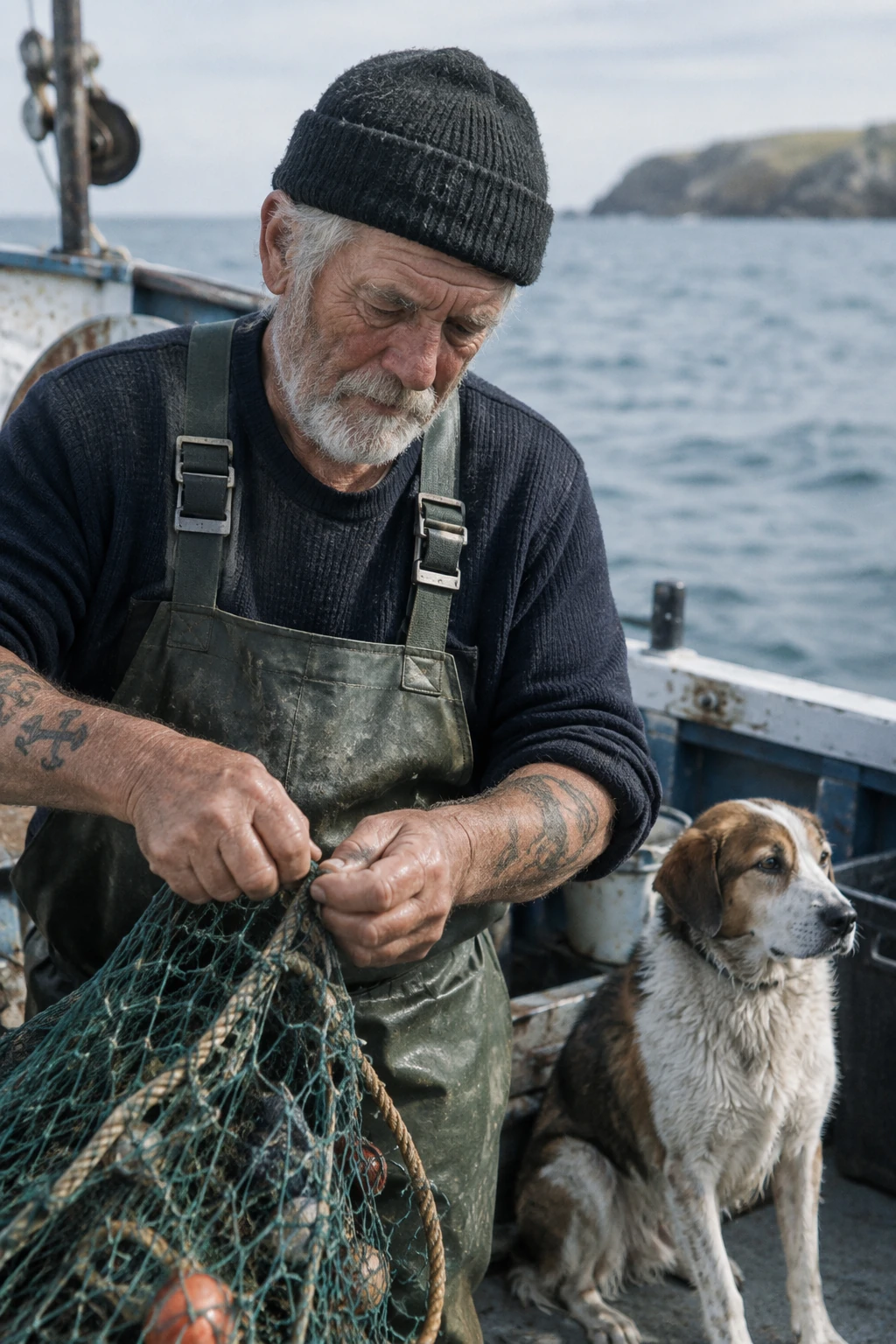 | 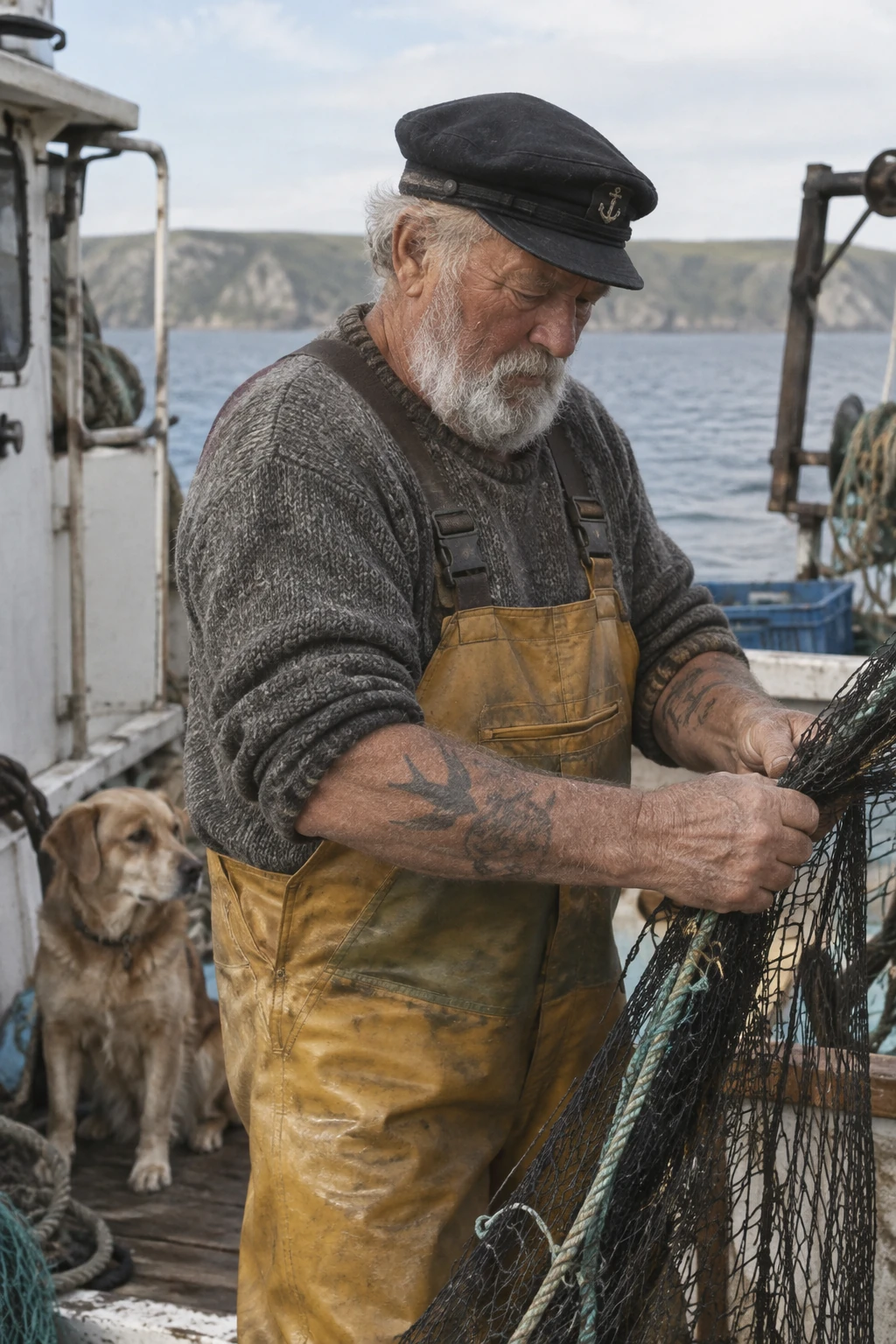 |
Compare skin texture, material detail, daylight, and how naturally the scene feels framed.
Treat Text as a Production Requirement
GPT Image models can place readable copy inside an image, but text should be handled like a specification, not a suggestion.
Use four controls:
- Put the exact wording in quotation marks.
- State where it belongs.
- Describe the typography and contrast.
- Tell the model whether it should appear once and whether extra text is forbidden.
Create a clean event poster for independent game designers.

Render the headline "BUILD SMALL. SHIP BOLD." exactly once at the top. Use large white geometric sans-serif lettering with generous spacing. Add "October 18, 2026" once below it in smaller teal type.

Keep the lower half focused on three people testing a colorful tabletop game. No other text, no sponsor logos, and no watermark.
Always proofread names, dates, prices, labels, and factual diagrams before publishing. Better text rendering reduces cleanup, but it does not remove the need for review. For dense labels or small type, compare higher quality settings and leave enough visual space for legibility.
Example: Exact Text in an Advertisement
This example asks for the tagline “Yours to Create.” exactly once, while explicitly rejecting extra text, watermarks, and unrelated logos.
| GPT Image 2.5 Flare | GPT Image 2.5 Sunburst |
|---|---|
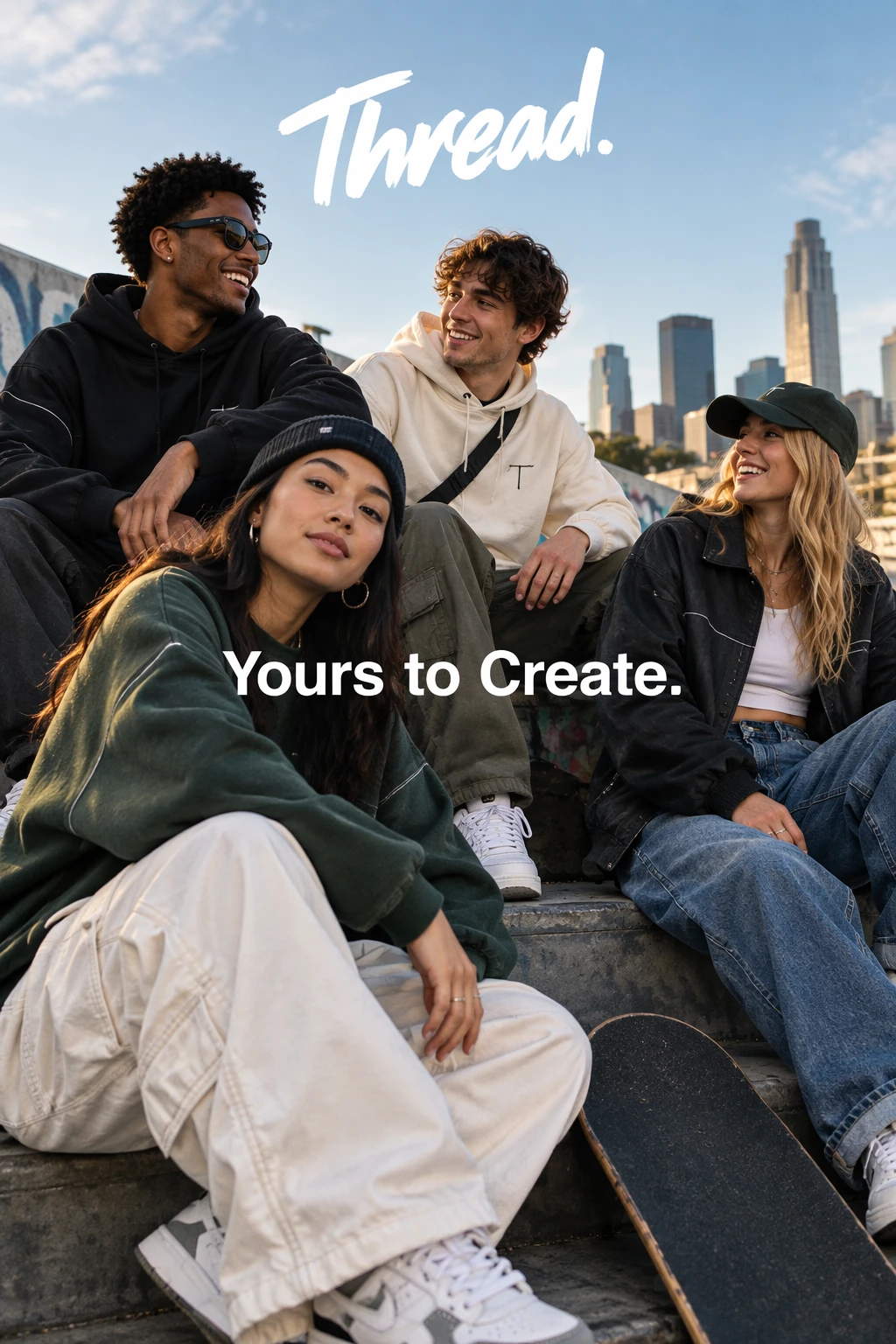 | 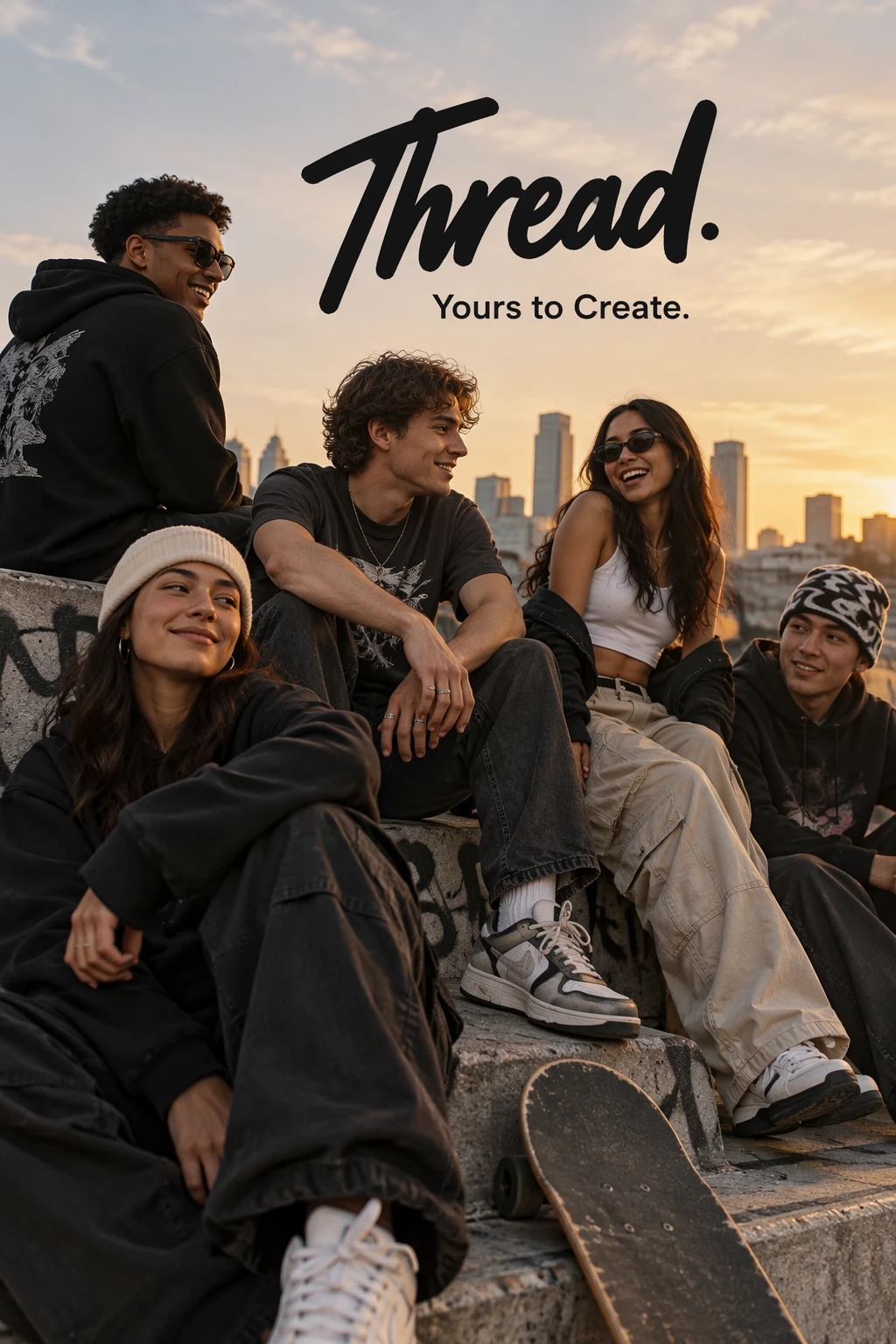 |
Check the tagline itself, how many times it appears, and whether unrelated copy entered the layout.
Give Every Reference Image One Job
When you provide several images, do not ask the model to “combine these references.” Identify each input and explain exactly what it contributes.
Use image 1 only as the identity reference for the person.
Use image 2 only for the jacket design and fabric.
Use image 3 only for the studio background and color palette.

Create a waist-up editorial portrait of the person from image 1 wearing the jacket from image 2, photographed in the setting of image 3.

Preserve the person's face, skin tone, hairstyle, body proportions, and expression. Adapt the jacket naturally to the existing body geometry. Match the background lighting to the subject. Do not copy people, text, or logos from images 2 and 3.
This makes the combination logic explicit. It also gives you a checklist for reviewing the result: identity from one source, clothing from another, environment from a third.
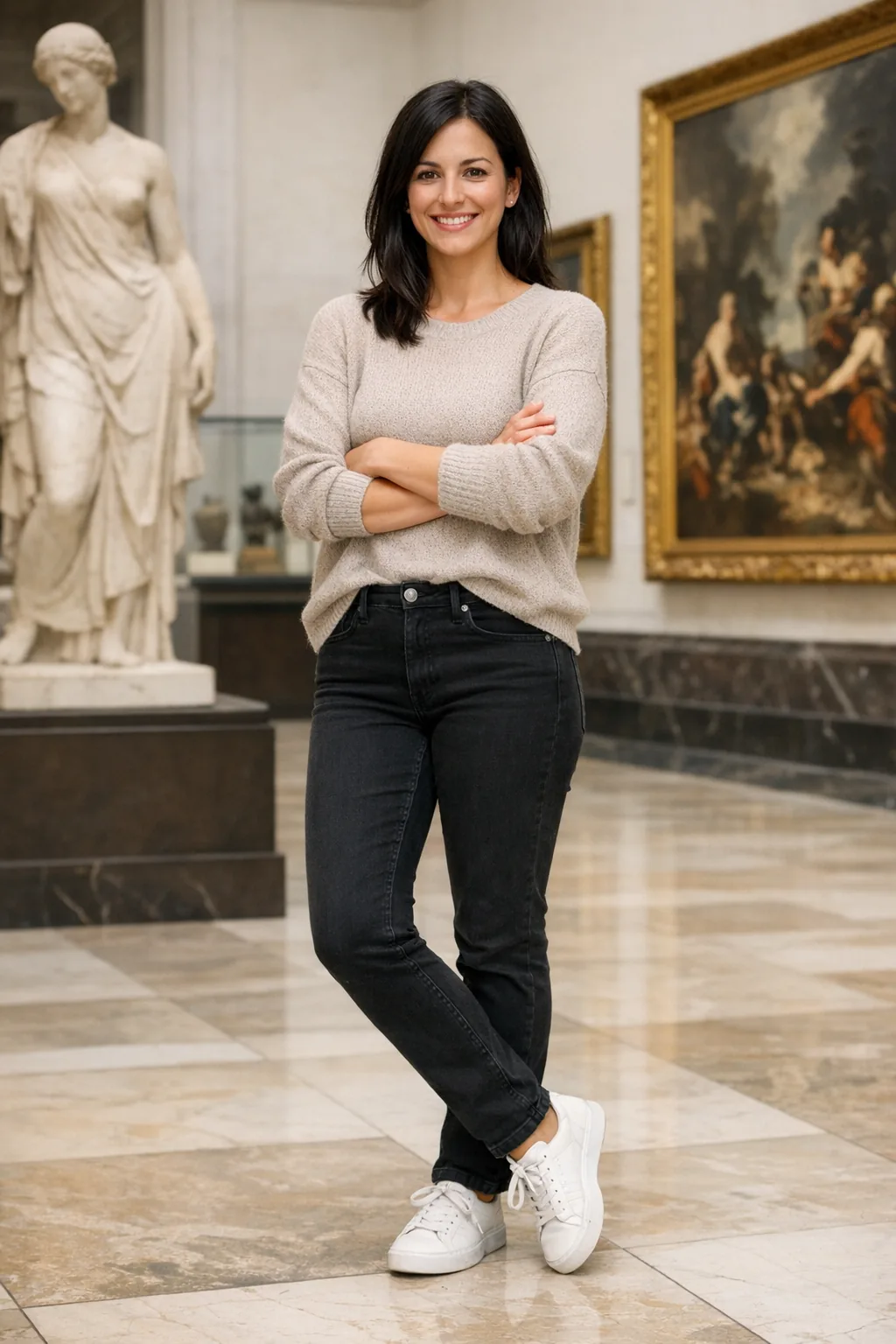
Example: Preserve Identity and Change Clothing
This editing example locks the person's identity, expression, hairstyle, proportions, pose, background, camera angle, and lighting. Only the clothing is allowed to change.
Identity reference
| GPT Image 2.5 Flare edit | GPT Image 2.5 Sunburst edit |
|---|---|
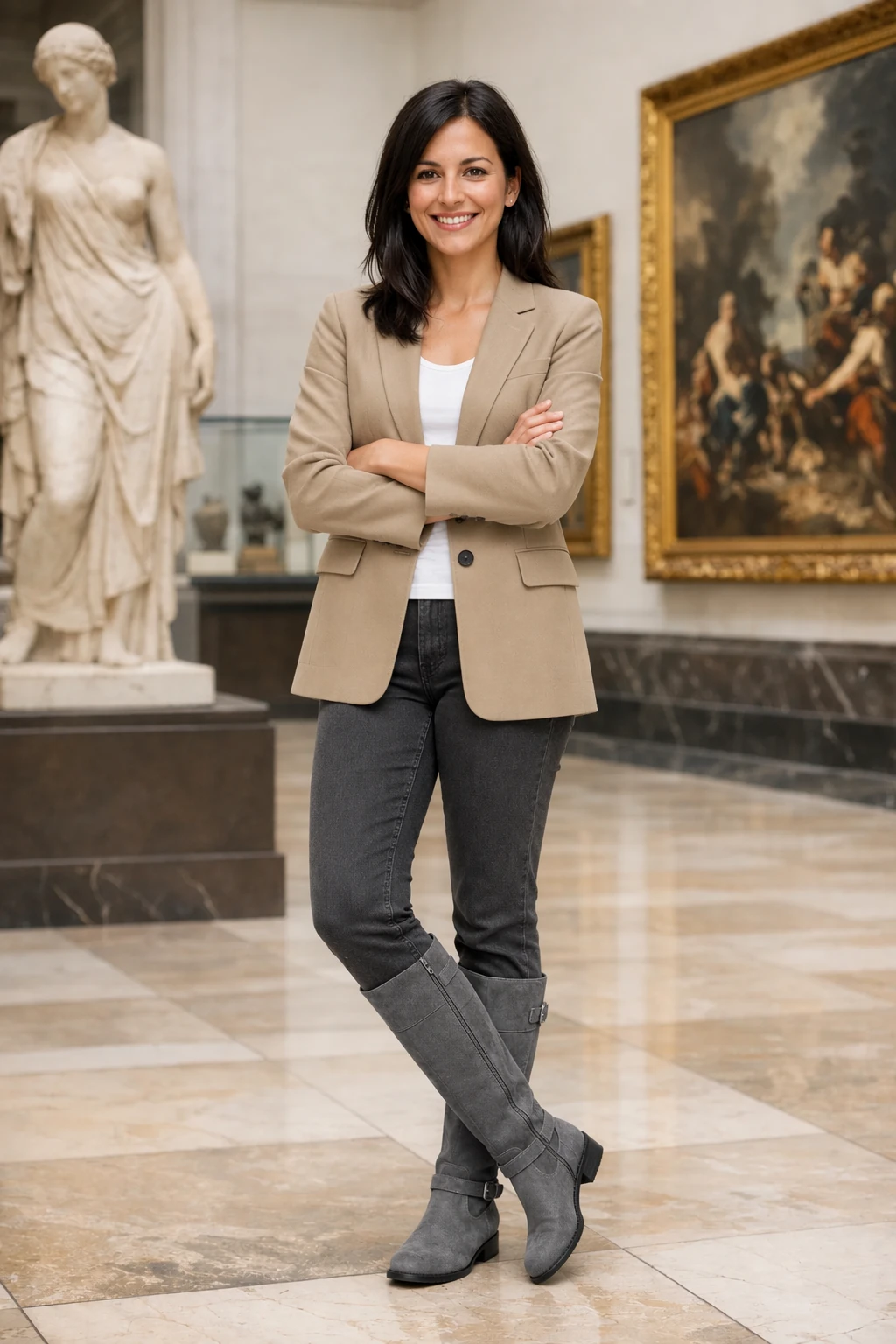 | 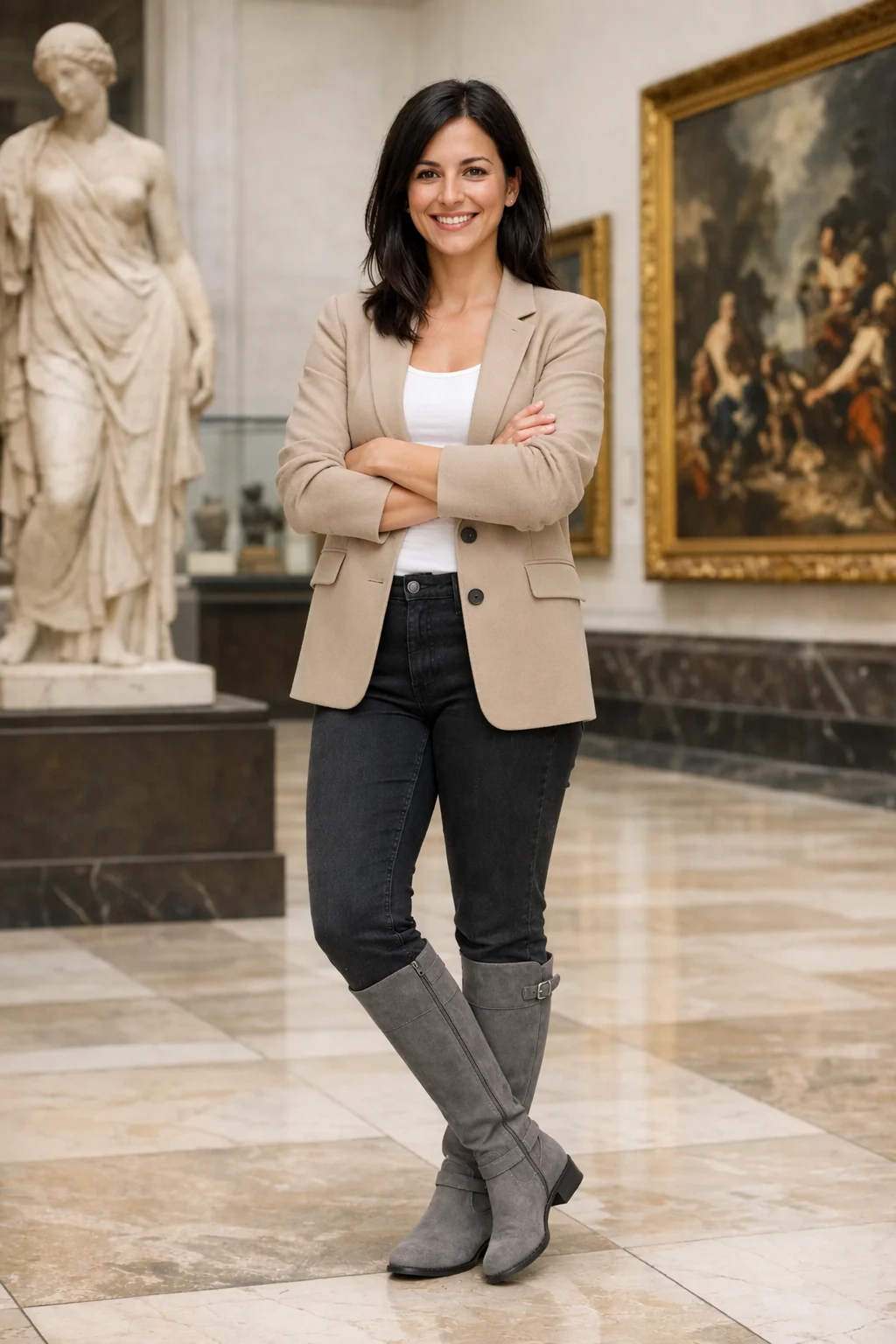 |
Review identity preservation first, then inspect fabric fit, shadows, color temperature, and background consistency.
For Edits, Separate the Change From the Lock
An edit prompt needs two clear lists:
- What should change
- What must remain unchanged
If you only describe the change, the model may reinterpret the whole image. A stronger edit instruction creates a narrow boundary around the request.
Change only the wall color behind the sofa from white to muted sage green.

Preserve the sofa, cushions, floor, window, plant, camera angle, framing, lighting direction, shadows, contrast, and image dimensions exactly as they are. Do not add or remove any object. Do not add text or a watermark.
For a clothing change, lock identity, pose, expression, body shape, and background. For a product edit, lock geometry, packaging, label spelling, reflections, and camera position. For layout translation, replace only the source text and preserve design, spacing, hierarchy, and surrounding artwork.
One important limit remains: repeated edits can gradually alter details. If a region must stay pixel-identical, prompting alone is not the right guarantee. Preserve the approved region in an image editor and composite the changed area back into the original.
Transparent Backgrounds Need Prompt and API Alignment
A checkerboard pattern is not transparency. For a true cutout, ask for an isolated subject in the prompt and set the API background parameter to transparent. Use PNG or WebP so the alpha channel can be retained.
Isolate the ceramic lamp from the reference image on a fully transparent background.

Center the complete lamp with generous padding. Preserve its exact silhouette, glaze texture, cable, switch, and proportions. Keep clean alpha edges with no halo. Do not add a floor, shadow, scenery, checkerboard, text, or watermark.
Inspect difficult edges such as hair, glass, soft shadows, reflective products, and thin objects after decoding the result. The instruction defines the desired asset, while the API parameter controls the actual background mode.
Example: Transparent Product Cutout
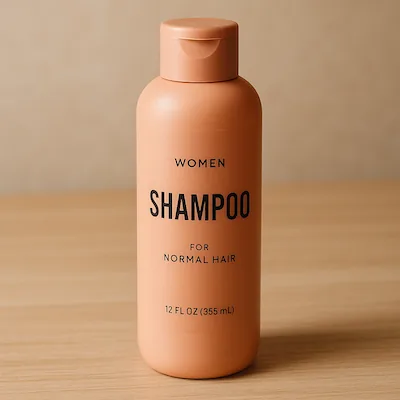
The source photo includes a complete scene. The edit asks the model to preserve the bottle geometry and label while removing everything around it.
Source image
| GPT Image 2.5 Flare cutout | GPT Image 2.5 Sunburst cutout |
|---|---|
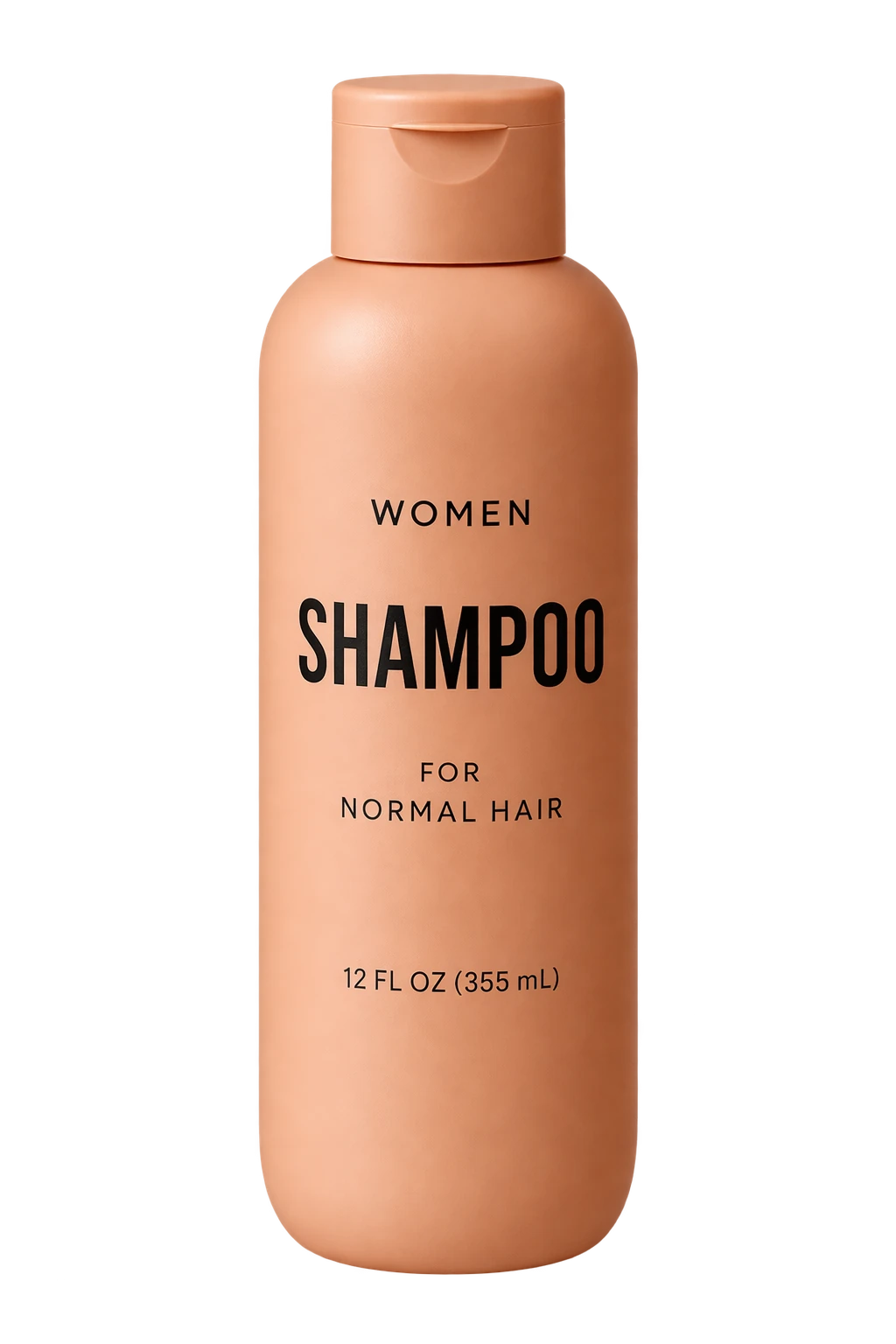 | 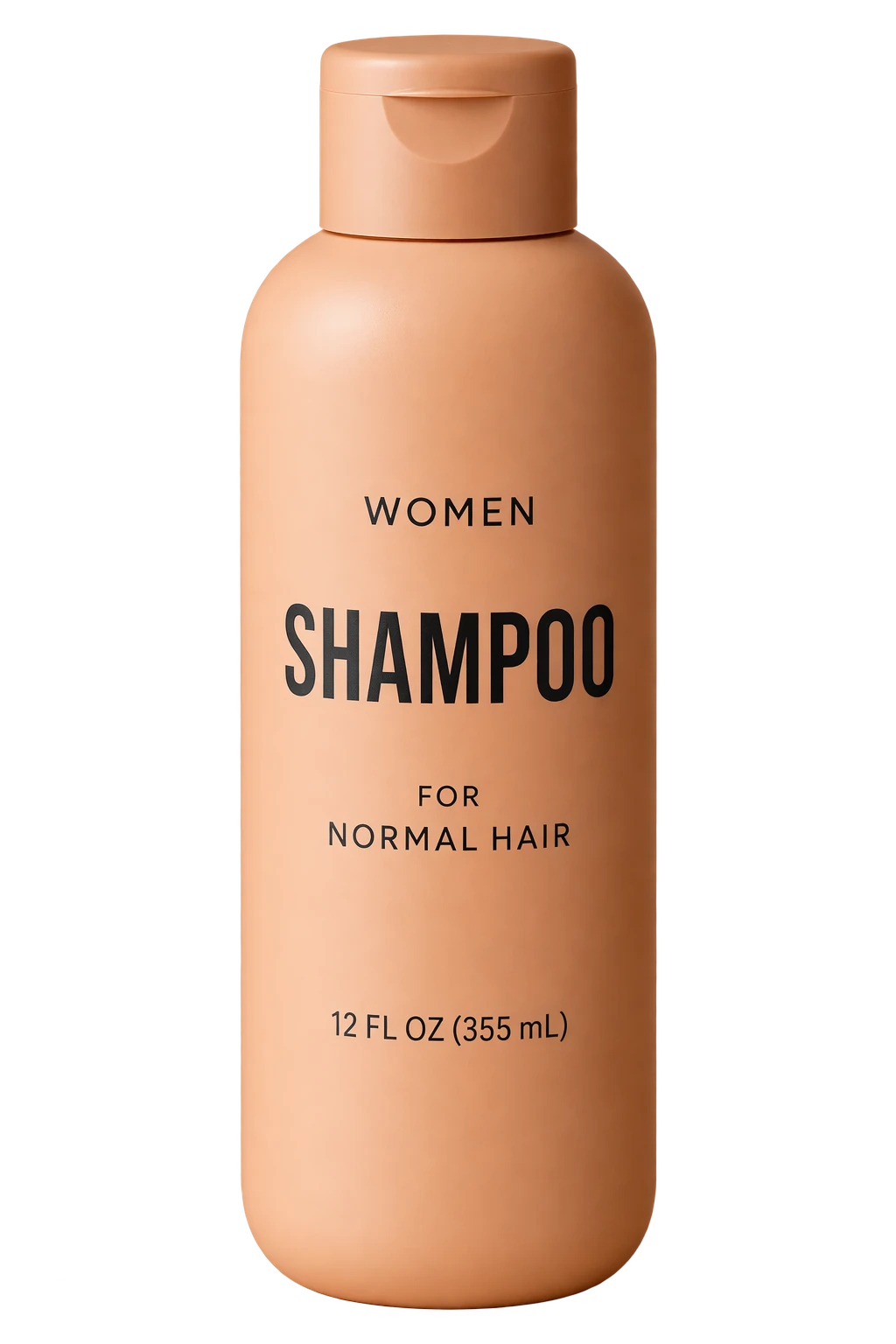 |
A real review should inspect the decoded alpha channel around the cap, label, bottle edge, and any soft reflections.
Keep Prompt Instructions and API Settings Separate
The prompt should explain the picture. API parameters should define delivery settings.
For GPT Image 2.5, the main controls include:
| Parameter | What it controls |
|---|---|
model | Flare or Sunburst |
quality | auto, low, medium, high, xhigh, or max |
size | Output dimensions, including square, portrait, landscape, 2K, and 4K options |
background | auto, opaque, or transparent |
Do not bury “make it 1536 by 1024” inside a long creative paragraph when the request already has a size field. Keeping them separate makes testing cleaner and reduces contradictions.
Higher quality is not guaranteed to improve every prompt. First choose the model, then raise quality only when a specific requirement is not being met. Once the image passes review, test lower settings to see whether they preserve acceptable quality with less waiting.
Iterate Like an Art Director
The fastest way to lose control is to request five changes at once.
Generate a starting image, inspect it, and make one meaningful change in each follow-up. Pass the previous result into the next edit and repeat the critical details that must survive.
Round 1: Create the product scene and composition.

Round 2: Make the afternoon light warmer. Preserve the product, label, layout, camera angle, and all objects.

Round 3: Replace only the headline with "MADE FOR SLOW MORNINGS." Preserve its position, size, font style, and color. No extra text.
This workflow gives every revision a purpose. It also makes failures easier to diagnose. If the label changed in round two, you know which instruction produced the drift and can return to the last approved result.
Example: Change One Condition Across Turns
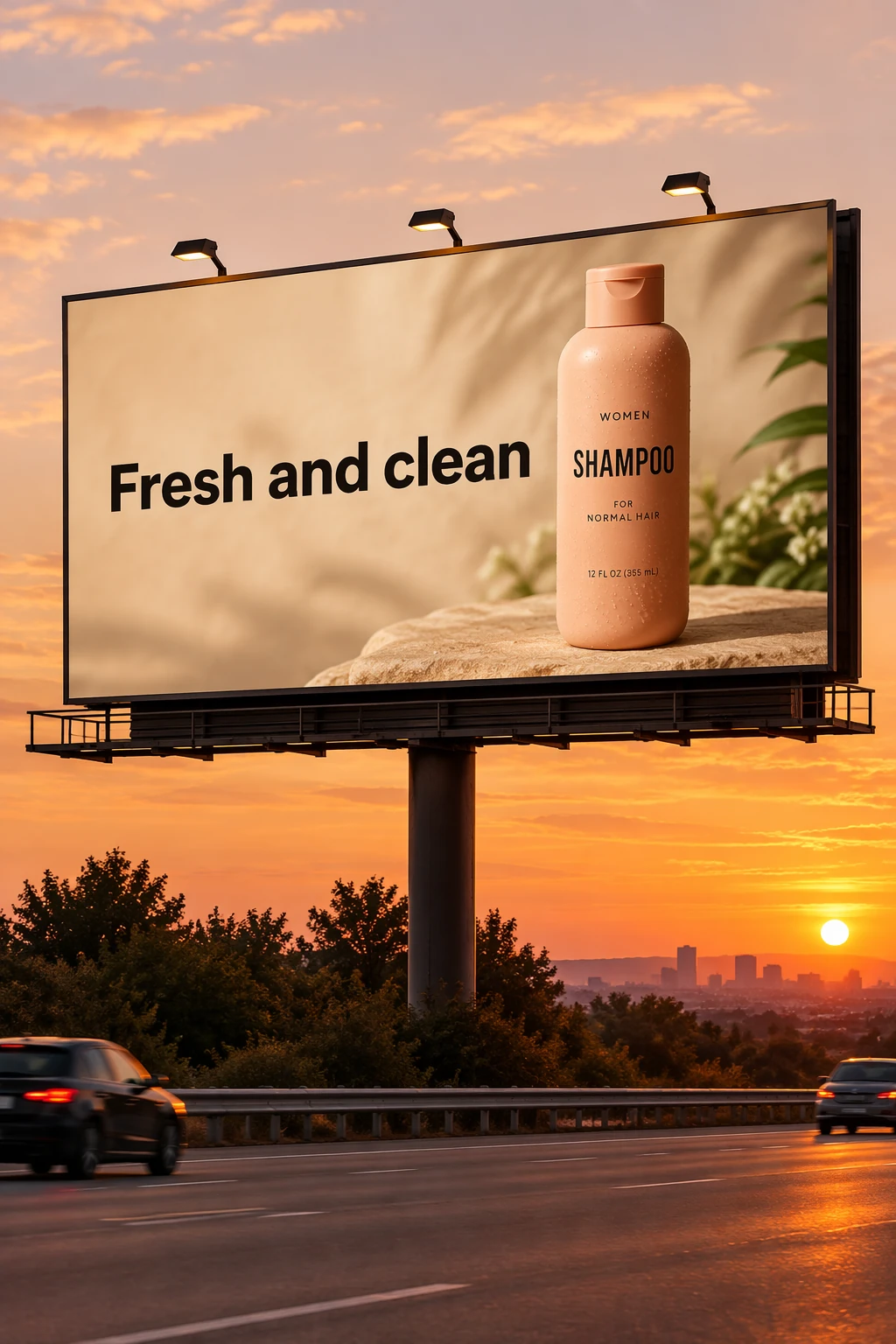
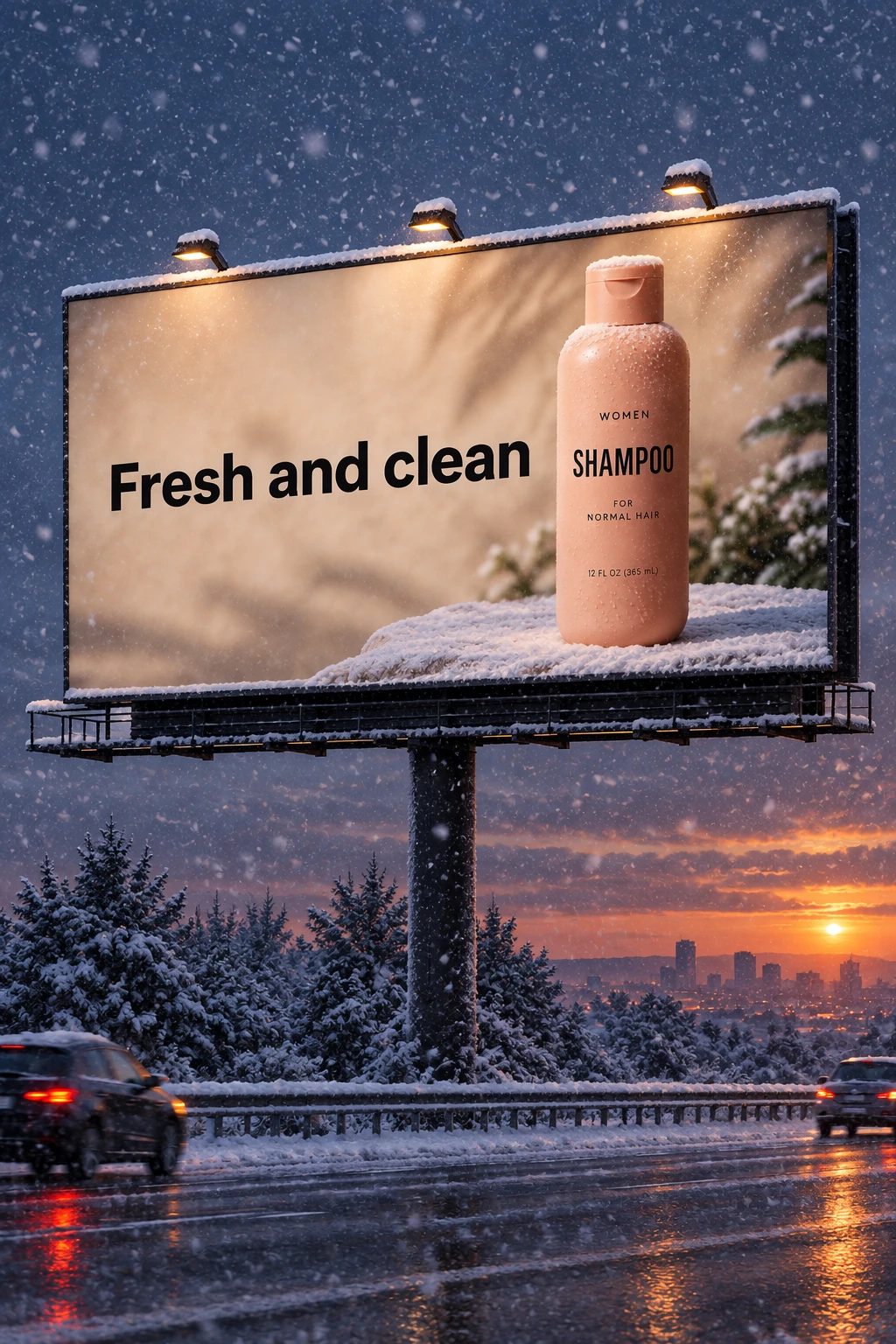
The workflow first creates a shampoo billboard at sunset, then makes one narrow follow-up request to turn the scene into a snowy winter evening.
| Starting image | Single-condition revision |
|---|---|
 |  |
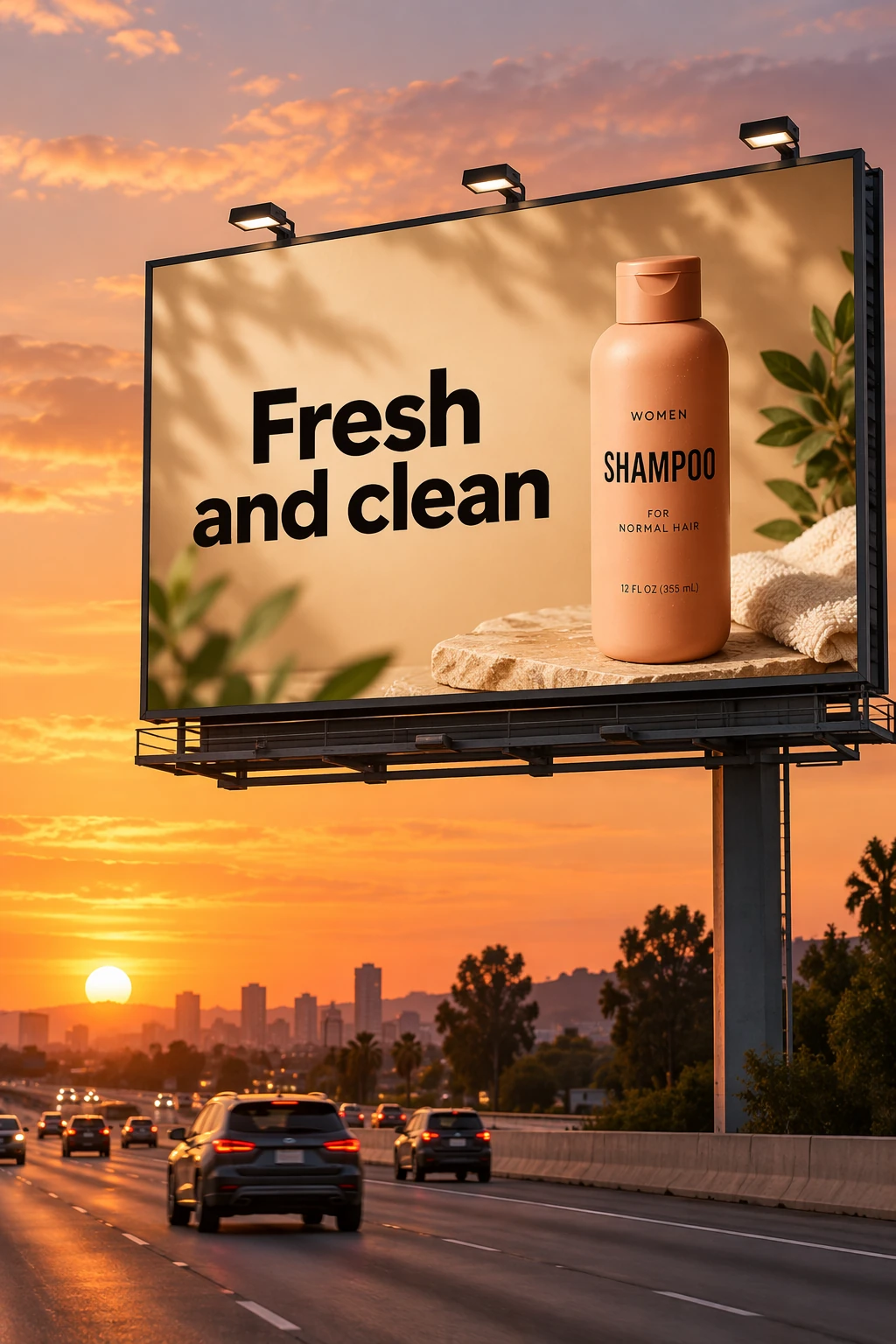 | 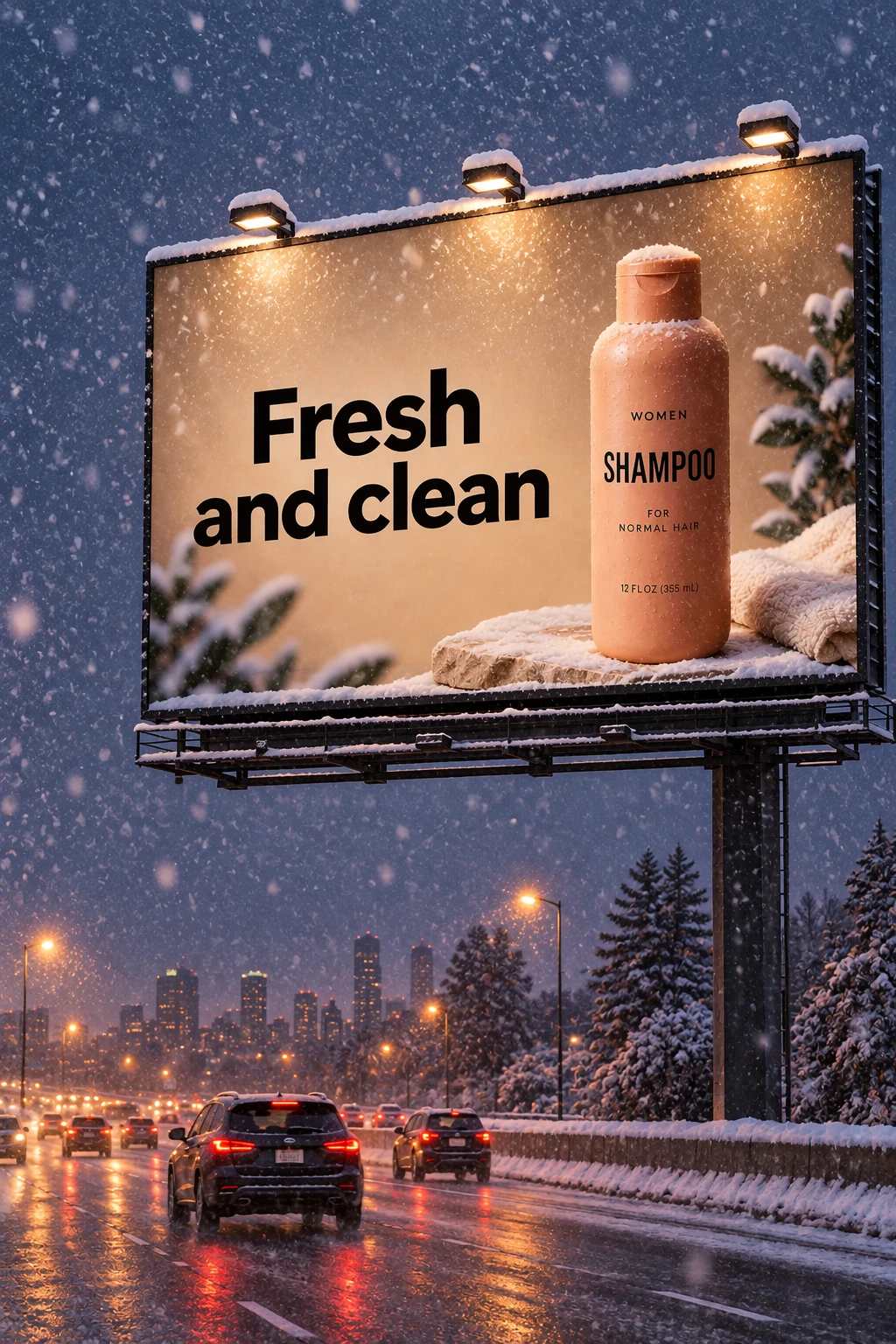 |
Compare the product, billboard text, composition, and camera position before judging the requested weather change.
Common Prompting Mistakes
Writing a keyword pile
“Luxury perfume, cinematic, 8K, beautiful, viral” contains style signals but no scene, composition, or use. Turn it into a visual brief.
Asking the model to infer reference roles
If one image controls identity and another controls style, say so. Unassigned references create avoidable ambiguity.
Editing without preservation rules
“Put her in a red coat” may invite changes to the face, pose, and background. State both the change and the lock.
Adding too many requirements at once
When copy, pose, lighting, layout, product details, and background all change together, you cannot tell what helped. Establish the broad image first, then refine it.
Trusting factual graphics without review
An attractive diagram can still contain a wrong label or relationship. Provide verified facts in the prompt, then check the output as carefully as the design.
Example: Educational Diagram
The cellular respiration example defines the audience, lesson objective, required stages, molecule labels, visual system, and exclusions. It also demonstrates why factual review matters even when the image looks polished.
| GPT Image 2.5 Flare | GPT Image 2.5 Sunburst |
|---|---|
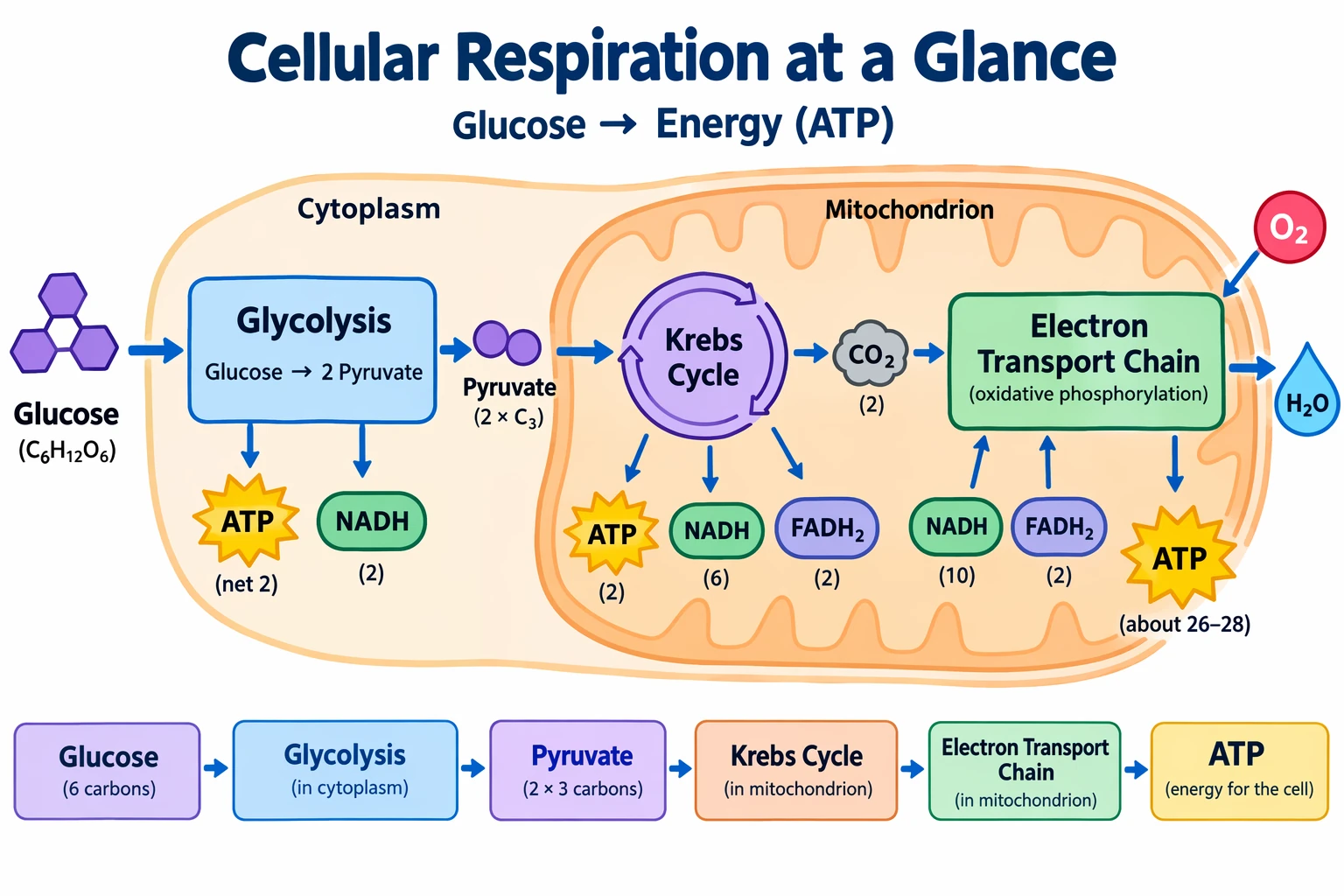 | 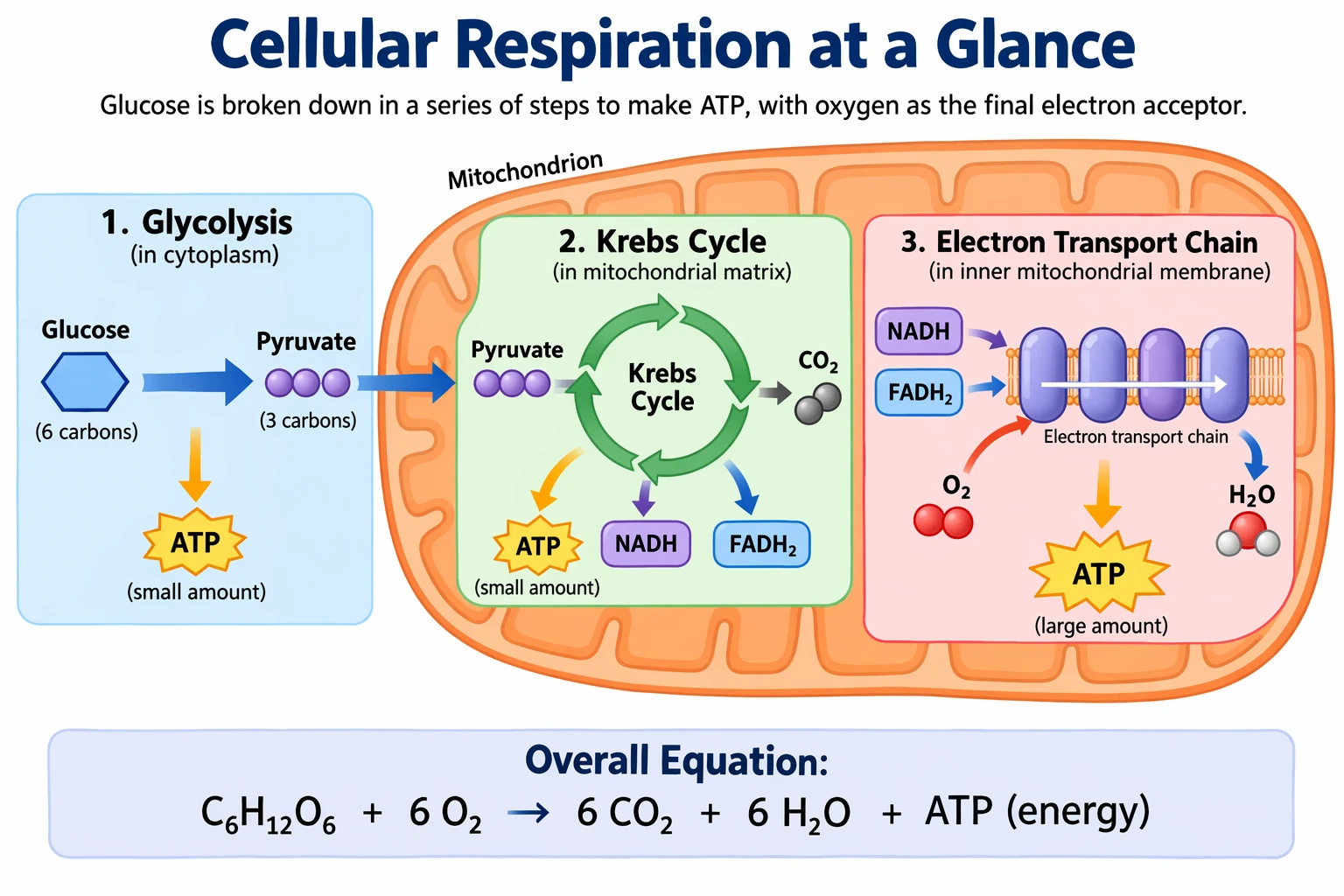 |
Verify every molecule, arrow, stage, and relationship against a trusted source before using an educational visual.
A Reusable Prompt Template
Copy this template whenever a blank prompt box slows you down:
Create a [asset type] for [audience, channel, or use].

Subject:
[Main subject, appearance, action, and important details]

Scene:
[Environment, time, surrounding objects, and atmosphere]

Composition:
[Orientation, shot size, angle, placement, hierarchy, and empty space]

Visual direction:
[Medium, lighting, palette, materials, texture, and realism level]

Required text:
"[Exact copy]" shown [once or number of times] at [position], using [typography]

References:
[Image number and the single role assigned to each input]

Preserve:
[Identity, geometry, labels, layout, lighting, or other locked details]

Exclude:
[Unwanted objects, extra text, logos, watermarks, or style choices]
Better Prompts Start With Better Decisions
The best GPT Image 2.5 prompt is not necessarily the longest. It is the one that makes the important creative decisions visible.
Define the finished asset. Describe what can be seen. Quote exact copy. Assign every reference a role. Separate edits from preservation rules. Then change one thing at a time and judge the complete result.
That is less like searching for the perfect incantation and more like directing a small creative team. It is also much easier to repeat.
You can try GPT Image 2.5 Flare on HeyMarmot for fast text-to-image creation, or open the HeyMarmot workspace to continue building your visual workflow.